

Miscellany PowerPoint PPT Presentation
1 / 11
Title: Miscellany
1
Miscellany
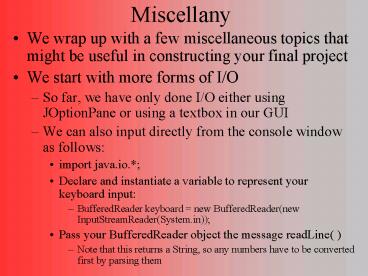
- We wrap up with a few miscellaneous topics that
might be useful in constructing your final
project - We start with more forms of I/O
- So far, we have only done I/O either using
JOptionPane or using a textbox in our GUI - We can also input directly from the console
window as follows - import java.io.
- Declare and instantiate a variable to represent
your keyboard input - BufferedReader keyboard new BufferedReader(new
InputStreamReader(System.in)) - Pass your BufferedReader object the message
readLine( ) - Note that this returns a String, so any numbers
have to be converted first by parsing them
2
I/O Exceptions
- An Exception is a situation that arises during a
Java program that is of importance for
instance, run-time errors are types of Exceptions - We handle Exceptions by using Exception handler
code - If you are going to use any of the io library,
these classes expect Exception handlers to be
implemented so that the programs can run safely
without causing run-time errors - How do you handle IO Exceptions?
- Two ways
- First, you can pass the buck by letting someone
else handle them - this is done by adding throws IOException to the
method header for the method doing I/O, and to
any method that calls this method - Second, you can place the code into a try block
- a try block tries something out and if it fails,
it throws an exception - to handle the problem, you implement a catch
block after your try block
3
Examples
try BufferedReader keyboard new
BufferedReader(new InputStreamReader(System.in)
) temp Integer.parseInt(keyboard.readLine())
catch(IOException e) System.out.println("oops
")
In this approach, the try/catch blocks handle the
Exception if one occurs Here, we throw the
Exception to whatever method called this
one, that method must either use a try/catch
block or throw the Exception as well by adding
throws IOException to
that methods header
public static int getInput2 ( )
IOException int temp 0 BufferedReader
keyboard new BufferedReader(new
InputStreamReader(System.in)) temp
Integer.parseInt(keyboard.readLine()) return
temp
4
Inputting from Files
- Now that you have seen how to do basic input from
keyboard, we can go over inputting/outputting to
files because it is very similar - To input from file
- Replace the previous BufferedReader line with
- BufferedReader infile new BufferedReader(new
FileReader(filename)) - where filename is the String name of the file
(including directories if the file is not in the
current directory) the file should be a text
file only - Now input an item using read( ) or readLine( )
- int x Integer.parseInt(infile.readLine( ))
- read inputs an item and leaves the cursor where
it is in the file for the next input, readLine( )
reads the next item and returns the cursor to the
next line for the next input - use read only if you have set up your file to
have multiple items on the same line
5
Outputting and Closing
- Outputting to a file is similar to inputting
except that we use a PrintWriter and FileWriter
in place of BufferedReader and FileReader - PrintWriter outfile new PrintWriter(new
FileWriter(filename)) - again filename is the name of the file in this
case, the file you want to create or overwrite - We use print or println for output
- outfile.print() outputs and leaves the
cursor on the same line - outfile.println() outputs and returns the
cursor in the file to start a new line - When we are done with our file after inputting or
outputting, we must close the file - infile.close( )
- outfile.close( )
6
Complete Example
import java.io. public class FileTester
public static void main(String args)
int i, n, item String filename1"test.txt",
filename2"out.txt" try BufferedReader
infile new BufferedReader(new
FileReader(filename1)) PrintWriter
outfile new PrintWriter(new FileWriter(file
name2)) n Integer.parseInt(infile.readLine()
) for(i0iltni) item
Integer.parseInt(infile.readLine()) outfile.p
rintln("Value " (i 1) " is "
item) infile.close() outfile.close()
catch(IOException e) System.out.prin
tln("Error in file access!")
7
Why Use File I/O?
- Save your paint program image
- You cant actually save the Graphics JPanel as a
bitmap, but you can save where each item was
painted - Save the high scores of a game
- Load from the high score file the scores, storing
them in an array - If the player earns a score higher than any in
the list, add this to the list in sorted order - At the end of the game, save the list back to
file - For the write a story program, you could have
all of the topic areas stored in files and input
all of the array elements from the files
for(i0iltnumi) outfile.println(shapesi.x
1) outfile.println(shapesi.y1) outfile.pri
ntln(shapesi.x2) outfile.println(shapesi.y
2) outfile.println(shapesi.type)
outfile.println(shapesi.color)
8
More on Files
- Notice in the previous example that we did
outfile.println(shapesi.color) - this will not work if the color is of type Color
- So instead, we have to convert the Color into
something that can be output how about the RGB
values? - outfile.println(shapesi.color.getRed( ))
- outfile.println(shapesi.color.getGreen( ))
- outfile.println(shapesi.color.getBlue( ))
- If we want to input all of the Shape info from
the file, how do we know how many times to read? - two approaches save the number of Shape
elements as an int value at the beginning of the
file, or just list each Shape one at a time and
iterate while the value is not null - the first approach is safer, and the approach
taken in the example 2 slides back, but the
latter approach is easier
9
Filenames
- In our previous example, we used hard-coded
file names - This will be fine if we want to replace the same
file every time we save our game - but if we want to be able to save multiple games,
we will need to input the file name - How?
- ask the user for the filename using a JOptionPane
input dialog box - ask the user for the filename in the console
window and use a BufferedReader to input it - add a JTextField to our GUI and have the user
type in the filename there however, this would
require that the user input the filename before
they click on the Load or Save button, or we
would have to have yet another JButton to click
on once they typed in the filename this could
get messy
10
Applets
- An applet is a Java program that runs inside a
web browser - This allows you to place your compiled programs
on your web site while letting anyone who has a
web browser run them - this is not possible in most other languages
because a program written in say C and compiled
on your computer will not run correctly on other
computers that are of a different platform or
Operating System - changing your program into an applet is not a
huge amount of work but is not necessarily
straightforward - therefore you will only want to do this if you
want to make your program available on the
Internet
11
Steps To Convert to JApplet
- JApplet (the newer version of an Applet) is part
of the javax.swing package, so import that
package - Change your class header from
- public class Name extends JFrame to
- public class Name extends JApplet
- Change the name of your main method to init
- public void init( )
- Delete all of the JFrame instructions but leave
the creation of your JPanel and change the add
instruction to merely be
lthtmlgt ltheadgt lttitlegtTitle herelt/titlegt lt/headgt ltb
odygt ltapplet codeName.class" height300
width300gt lt/appletgt lt/bodygt lt/htmlgt
- add(jpanelItem)
- as opposed to frame.getContentPane().add(jpanelIte
m) - Compile your JApplet
- note that since the JApplet no longer has a main
method, you cannot directly run it - instead, create an html file (see to the right),
open a web browser to that URL and the applet
will load onto that web page
Recommended

