

Essential Tips for Effective Communication in PowerPoint PowerPoint PPT Presentation
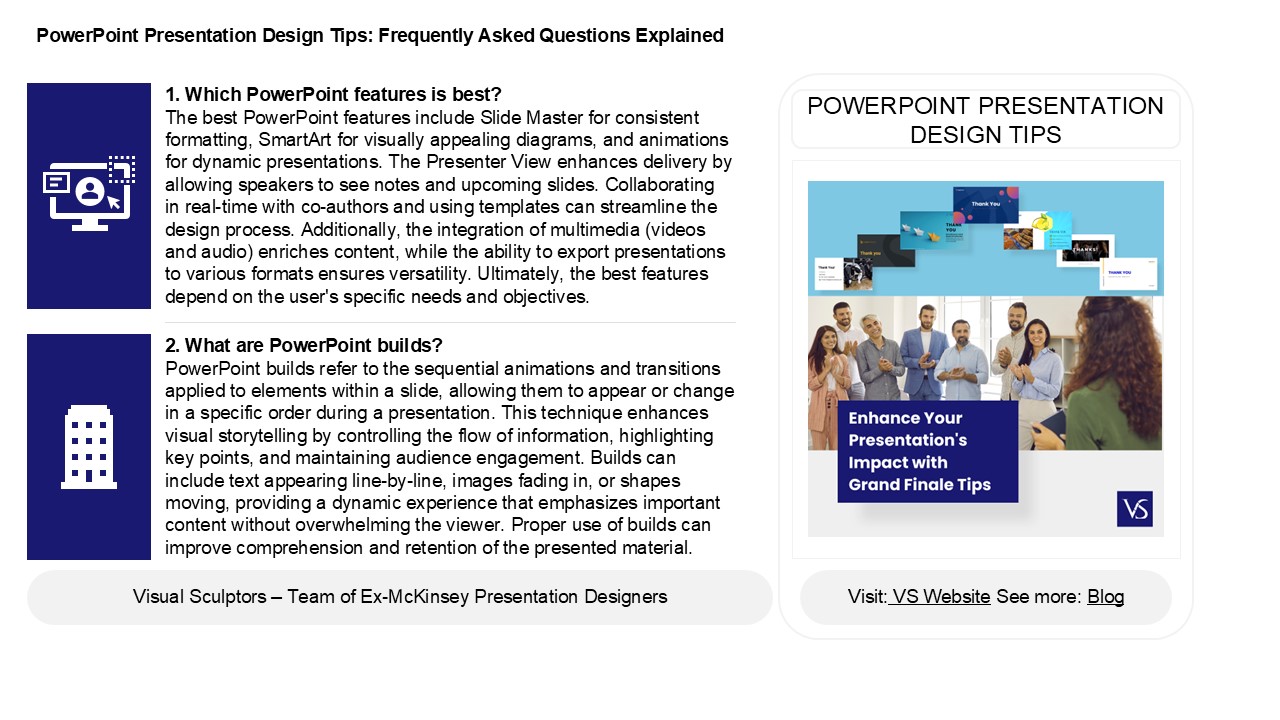
Title: Essential Tips for Effective Communication in PowerPoint
1
PowerPoint Presentation Design Tips Frequently
Asked Questions Explained
1. Which PowerPoint features is best? The best
PowerPoint features include Slide Master for
consistent formatting, SmartArt for visually
appealing diagrams, and animations for dynamic
presentations. The Presenter View enhances
delivery by allowing speakers to see notes and
upcoming slides. Collaborating in real-time with
co-authors and using templates can streamline the
design process. Additionally, the integration of
multimedia (videos and audio) enriches content,
while the ability to export presentations to
various formats ensures versatility. Ultimately,
the best features depend on the user's specific
needs and objectives.
POWERPOINT PRESENTATION DESIGN TIPS
2. What are PowerPoint builds? PowerPoint builds
refer to the sequential animations and
transitions applied to elements within a slide,
allowing them to appear or change in a specific
order during a presentation. This technique
enhances visual storytelling by controlling the
flow of information, highlighting key points, and
maintaining audience engagement. Builds can
include text appearing line-by-line, images
fading in, or shapes moving, providing a dynamic
experience that emphasizes important content
without overwhelming the viewer. Proper use of
builds can improve comprehension and retention of
the presented material.
2
PowerPoint Presentation Design Tips Frequently
Asked Questions Explained
3. What is PowerPoint structure? PowerPoint
structure consists of slides organized in a
linear sequence. Each slide can contain a
combination of text, images, charts, and
multimedia elements. The presentation typically
starts with a title slide, followed by an agenda
or introductory slide, body slides for content,
and a conclusion slide. Slides can also include
transitions and animations to enhance visual
appeal. Themes and templates provide a cohesive
design. Speaker notes may accompany slides for
presentation guidance. Overall, the structure
helps convey information effectively and engages
the audience.
4. What is a theme in PowerPoint? A theme in
PowerPoint is a cohesive design that includes a
set of colors, fonts, effects, and background
styles to enhance the visual appeal of a
presentation. Themes help create a consistent
look and feel across all slides, making it easier
for audiences to follow the content. Users can
choose from built-in themes or customize their
own to align with branding or specific
presentation goals. Applying a theme streamlines
the design process, allowing presenters to focus
on content rather than individual slide
aesthetics.
5. How do you start presenting in PowerPoint? To
start presenting in PowerPoint, open your
presentation file and click on the "Slide Show"
tab in the ribbon. From there, select "From
Beginning" to start the presentation from the
first slide, or "From Current Slide" to begin
from the slide you are currently on. You can also
press the F5 key to start from the beginning or
Shift F5 to start from the current slide. Use
the arrow keys or mouse clicks to navigate
through your slides during the presentation.
Recommended

