

Enhancing Presentations: The Role of Animations in PowerPoint PowerPoint PPT Presentation
Title: Enhancing Presentations: The Role of Animations in PowerPoint
1
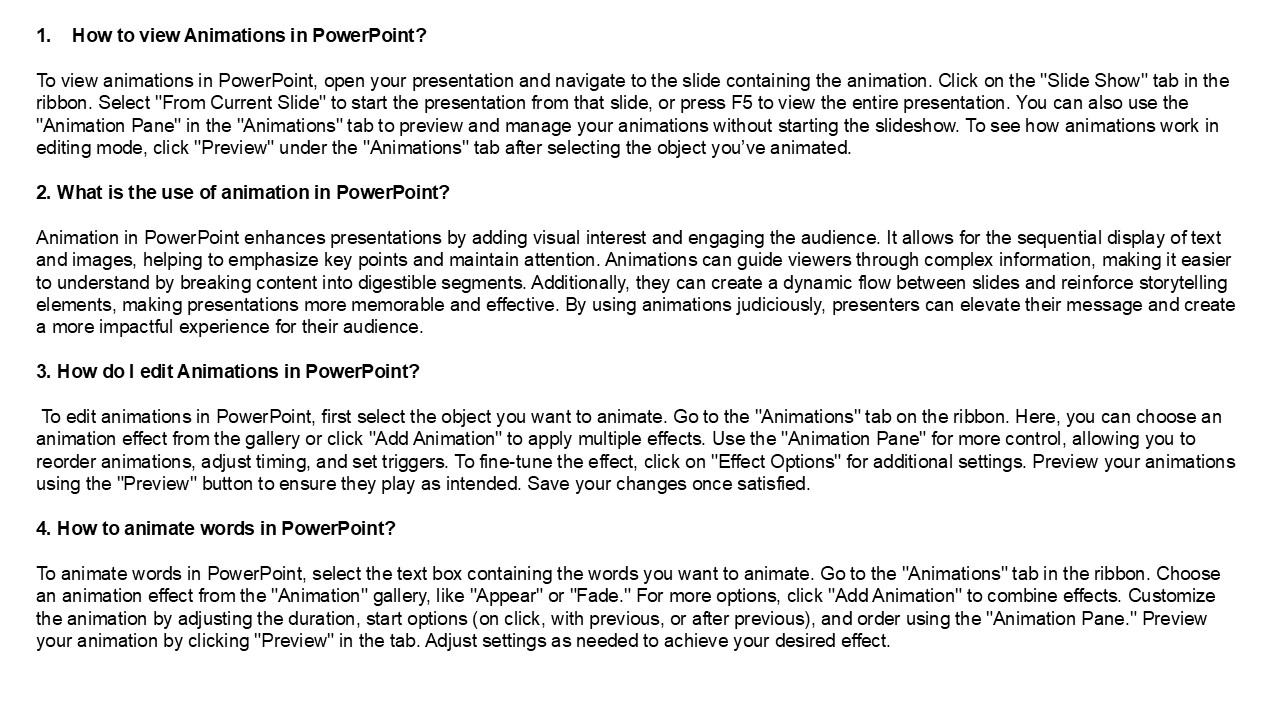
- How to view Animations in PowerPoint?
- To view animations in PowerPoint, open your
presentation and navigate to the slide containing
the animation. Click on the "Slide Show" tab in
the ribbon. Select "From Current Slide" to start
the presentation from that slide, or press F5 to
view the entire presentation. You can also use
the "Animation Pane" in the "Animations" tab to
preview and manage your animations without
starting the slideshow. To see how animations
work in editing mode, click "Preview" under the
"Animations" tab after selecting the object
youve animated. - 2. What is the use of animation in PowerPoint?
- Animation in PowerPoint enhances presentations by
adding visual interest and engaging the audience.
It allows for the sequential display of text and
images, helping to emphasize key points and
maintain attention. Animations can guide viewers
through complex information, making it easier to
understand by breaking content into digestible
segments. Additionally, they can create a dynamic
flow between slides and reinforce storytelling
elements, making presentations more memorable and
effective. By using animations judiciously,
presenters can elevate their message and create a
more impactful experience for their audience. - 3. How do I edit Animations in PowerPoint?
- To edit animations in PowerPoint, first select
the object you want to animate. Go to the
"Animations" tab on the ribbon. Here, you can
choose an animation effect from the gallery or
click "Add Animation" to apply multiple effects.
Use the "Animation Pane" for more control,
allowing you to reorder animations, adjust
timing, and set triggers. To fine-tune the
effect, click on "Effect Options" for additional
settings. Preview your animations using the
"Preview" button to ensure they play as intended.
Save your changes once satisfied. - 4. How to animate words in PowerPoint?
- To animate words in PowerPoint, select the text
box containing the words you want to animate. Go
to the "Animations" tab in the ribbon. Choose an
animation effect from the "Animation" gallery,
like "Appear" or "Fade." For more options, click
"Add Animation" to combine effects. Customize the
animation by adjusting the duration, start
options (on click, with previous, or after
previous), and order using the "Animation Pane."
Preview your animation by clicking "Preview" in
the tab. Adjust settings as needed to achieve
your desired effect.
2
5. What is animation and transition in
PowerPoint? Animation in PowerPoint refers to
the visual effects applied to text, images, or
objects on a slide, controlling how they appear,
disappear, or move during a presentation.
Transitions, on the other hand, are effects that
occur when moving from one slide to another,
enhancing the flow of the presentation. Both
features help engage the audience and emphasize
key points, allowing for a more dynamic and
visually appealing experience. Users can
customize animations and transitions to suit
their presentation style and enhance
storytelling. Visit VS Website See more Blog
Recommended

