

Comprehensive Guide to Fixing Windows Shift S Not Working Issue PowerPoint PPT Presentation
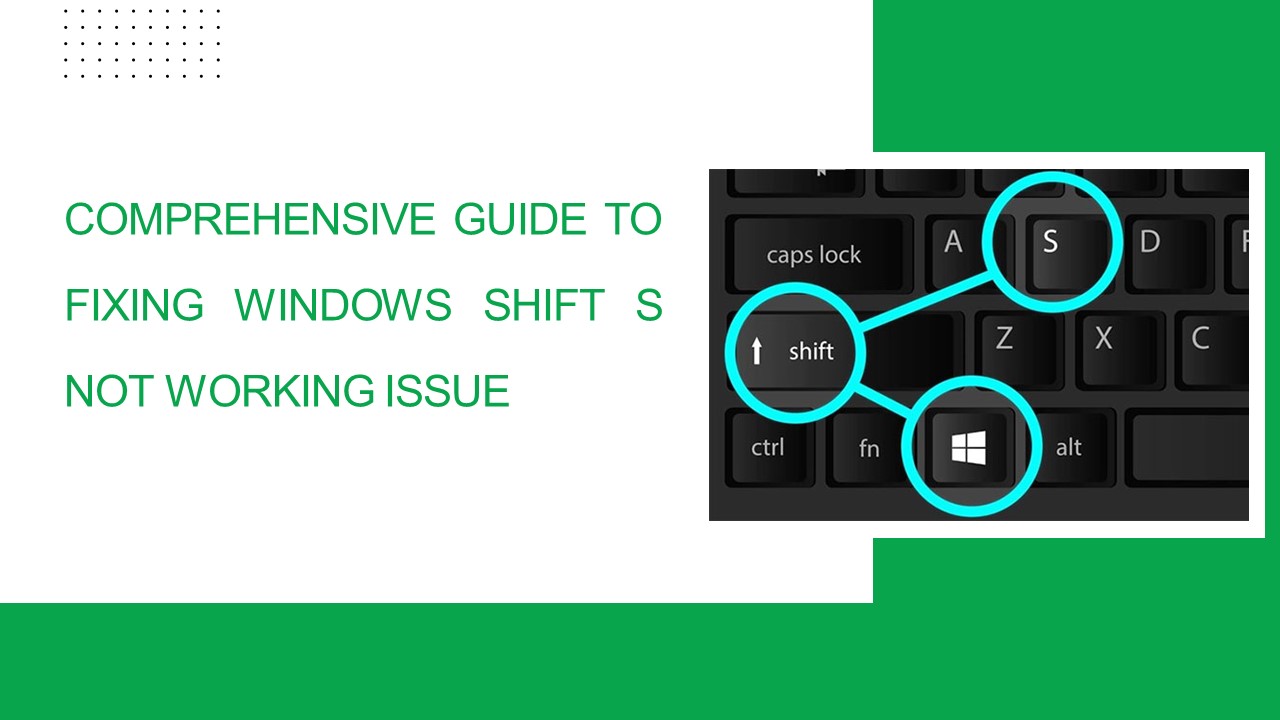
Title: Comprehensive Guide to Fixing Windows Shift S Not Working Issue
1
COMPREHENSIVE GUIDE TO FIXING WINDOWS SHIFT S NOT
WORKING ISSUE
2
In this detailed guide, we will explore various
troubleshooting methods to resolve the
frustrating issue of Windows Shift S not working.
Whether you're a professional who relies on
screenshots for work or an individual who needs
them for personal use, encountering this problem
can be highly inconvenient. Fear not, as we delve
into the root causes and provide comprehensive
solutions to restore the functionality of this
essential shortcut.
3
UNDERSTANDING THE CAUSES
Before delving into the solutions, it's essential
to grasp the potential reasons behind the Windows
Shift S malfunction. This shortcut, designed to
summon a snipping menu, may fail due to several
factors 1. Transient Issues Sometimes, the
shortcut may not respond at all, leading to a
darkened screen without the expected menu. A
quick reboot often resolves such transient
issues. 2. Hardware Malfunctions Ensure that
your keyboard is properly connected and that all
relevant keys (Windows, Shift, and S) are
functional. Dust or dirt accumulation might
hinder their operation, necessitating
cleaning. 3. Outdated Software Outdated Windows
software can cause unexpected behavior with
keyboard shortcuts. Regularly check for and
install available updates to mitigate such
issues. 4. Notification Settings In Windows 10,
verify that alerts for Snip Sketch are enabled.
Navigate to Settings gt System gt Notifications
actions to ensure proper configuration.
4
BASIC TROUBLESHOOTING STEPS
Let's commence our troubleshooting journey by
addressing some common culprits responsible for
the Windows Shift S malfunction Reboot Your
System A quick reboot can often rectify
transient issues that disrupt shortcut
functionality. Verify Keyboard Connectivity
Ensure that your keyboard is correctly connected
and free from any obstructions hindering key
operation. Update Windows Software Regularly
check for and install available updates under
Settings gt Update Security to keep your system
optimized. Check Notification Settings Confirm
that alerts for Snip Sketch are enabled under
Settings gt System gt Notifications actions.
FOCUSING ON SNIP SKETCH
Given that the Windows Shift S shortcut is
directly linked to the Snip Sketch software (or
Snipping Tool in Windows 11), let's concentrate
on troubleshooting within this program to restore
screenshot functionality Enable Snip Sketch
(Windows 10) Navigate to Settings gt System gt
Notifications and Actions and ensure that Snip
Sketch is turned on. Reset Snip Sketch
Resetting the Snip Sketch application can
sometimes resolve internal app issues. Navigate
to Settings gt Apps and Features, locate Snip
Sketch, click on it, and choose Advanced options.
Click the Reset button to restore the application
to its default state. Utilize the PrtScr Key
While not as convenient as the shortcut, the
PrtScr key captures the entire screen and copies
it to the clipboard, allowing further editing in
image editing applications.
5
(No Transcript)
6
ADVANCED TROUBLESHOOTING
For more advanced users encountering persistent
issues with the Windows Shift S shortcut,
consider the following advanced troubleshooting
methods Check for Conflicting Keyboard
Shortcuts Investigate other programs to ensure
they are not utilizing the same key combination.
Reassign conflicting shortcuts to minimize
conflicts. Re-register Snip Sketch App Using
the command prompt, re-register the Snip Sketch
app with the system. Exercise caution and follow
explicit directions to avoid unforeseen
outcomes. System File Checker Scan Run an SFC
scan to detect and fix corrupted system files,
which may contribute to shortcut malfunction.
7
ADDITIONAL TIPS FOR OPTIMAL SCREENSHOT EXPERIENCE
For an enhanced screenshot experience, consider
implementing the following tips Customize Snip
Sketch Settings Explore the settings within
the Snip Sketch app to tailor the experience to
your preferences. Adjust capture style, delay
duration, and storage options for optimal
results. Explore Third-Party Screenshot Tools
Consider third-party screenshot applications like
Greenshot, Snagit, or LightShot for enhanced
features and capabilities, such as annotations
and cloud storage integration.
8
CONCLUSION
In conclusion, encountering the Windows Shift S
not working issue can be a frustrating
experience, but with the comprehensive
troubleshooting methods outlined in this guide,
you can effectively diagnose and resolve the
problem. By following the steps provided, you can
restore the functionality of this essential
shortcut and continue capturing screenshots with
confidence and ease. Remember, persistence in
troubleshooting and exploring alternative methods
can often lead to successful resolution. Don't
let technical challenges hinder your productivity
empower yourself with the knowledge and tools
to overcome them effectively.
9
THANK YOU
CONTACT US
Recommended

