

In this section you will learn how to: PowerPoint PPT Presentation
1 / 11
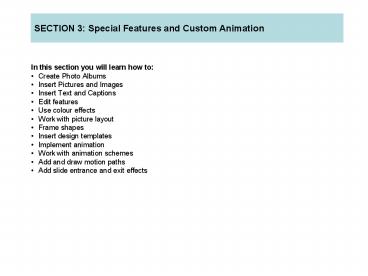
Title: In this section you will learn how to:
1
- In this section you will learn how to
- Create Photo Albums
- Insert Pictures and Images
- Insert Text and Captions
- Edit features
- Use colour effects
- Work with picture layout
- Frame shapes
- Insert design templates
- Implement animation
- Work with animation schemes
- Add and draw motion paths
- Add slide entrance and exit effects
2
Create New Album
- To start the process, click the Insert menu,
choose Picture, and click Photo Album.
3
Inserting Pictures and Images
- In the New Photo Album dialog, you have the
option of inserting pictures from a file,
scanner, or digital camera.
4
Text, Captions, and Picture Order
- You can insert captions for each photo right in
the Photo Album dialog. - You can also modify the photo order using the
arrows below the photo list.
5
Picture Layout, Frame Shape, and Design Templates
- With the picture layout you can have related
pictures together on one slide, or have each
photo by itself. - You can also choose the frame of the picture with
different frame shapes. - As well, you can choose from a variety of
creative and vibrant design templates.
6
Changing Color Effect
- Below each photo are commands for brightness,
contrast, and rotation.
7
Entrance and Exit Effects
- First, select the object that you want the effect
to apply to. - Then, in the Custom Animation task pane, click
Add Effects. - Next, click Entrance or Exit, and choose the
specific effect that you want.
8
Emphasis Effect
- Adding emphasis effects to an object is similar
to adding an entrance or exit effect. - First, select the object that you want the effect
to apply to. - Then, in the Custom Animation task pane, click
Add Effects. - Next, click Emphasis, and choose the specific
effect that you want.
9
Animation Schemes
- Unlike entrance, emphasis, and exit effects,
animation schemes are applied from the Animation
Schemes task pane. - You can switch to this task pane by clicking the
Slide Show menu and clicking Animation Schemes. - Then, select your object and click the animation
you want.
10
Add and Draw Motion Paths
- Motion Paths are applied from the Custom
Animation task pane. - You can draw the path you would like the picture
to take before it settles.
11
Speeds and Timing Options
- You will find the timing options in the middle of
the Custom Animation task pane. - Simply select the effect you want to modify from
the list and change the desired aspect.
Recommended

