

Octa PowerPoint PPT Presentation
1 / 40
Title: Octa
1
(No Transcript)
2
Welcome to Octa presentation.
What is Octa ?
Octa stands for Oyster Card Transactions
Analyser.
Shows detailed usages of any Oyster card.
3
Aim
- A tool that supports detailed discussion and
review of journey history and Pre-Pay charges. - A tool that will assure Pre-Pay values charged.
- A tool that can be used by staff with minimal
knowledge of Pre-Pay rules. - A tool to cross check Testing results with
Central System transactions.
4
What it does.
1) Extracts data from Central System (CS) for one
card. 2) Analyses each transaction and produces
explanations in a comment column. 3) Allows a
Pre-Pay validation engine to be run explains
validation failures.
5
Design.
- Basic functions.
- Connects MS Excel to Oracle data base.
- Extracts data.
- Formats spreadsheet.
- Checks Discards any duplicate transactions.
- Uses transactions flags to analyse annotate a
comment field for each transaction.
6
- Data Extract from Central System.
- User specifies Oyster card number and how many
days of data to extract. - Octa extracts card transactions from CS extract
includes several flags e.g. OSI, CE etc . - Extracts key card characteristics.
7
- Display.
- Highlights in bold, transactions which occur
during the Peak capping band. - Displays card holder details e.g. name address.
- Separates transactions into daily sets.
- Highlights any missing transactions.
- Checks transaction times are consistent with
sequence number.
8
- Transaction Analysis.
- Octa analyses each card transaction using
Pre-Pay rules based on the flags on the
transactions. - Identifies TKT , Pre-Pay and Mixed journeys.
- Produces explanation of the type of transaction
in a comments field.
9
- Pre-Pay validation engine.
- The engine checks the validity of Pre-Pay
charged in each transaction. - If engine agrees with data the comment field is
expanded and highlighted in blue. - If engine disagrees with data the comment is
overwritten with what the engine calculated, and
is highlighted in bold, red, italics.
10
- Pre-Pay Engine Analysis.
- Identifies.
- Entry, Exit or Boarding.
- TKT / Mixed / Pre-Pay journeys.
- Complete / Incomplete journeys.
- Transfer Discount (TD).
- TKT, Pre-Pay Purchases Auto-Load.
- Voids Adjustments.
11
- Pre-Pay Engine Analysis.
- Validates.
- Zones and whether journey is through Zone 1.
- Peak/off peak capping levels.
- Special fares.
- OSI Stations.
- Rail and Bus Fares.
12
- Pre-Pay Engine Analysis.
- Calculates the expected Pre-Pay amount to be
charged for each journey transaction depending on
capping scheme, running total and values from a
Zonal fares table ( allowing for entry exit
charges, OSI, complete incomplete journeys
transfer discounts). - Uses CS table to determine correct capping
values. - Calculates Pre-Pay running total for the day.
13
- Pre-Pay Engine Analysis.
- Compares Octa-calculated charges to actual
charges and adjusts comments colour content
accordingly. - Agreement ( blue )
- Gives warring if an alternative route is cheaper.
- Disagreement ( red ) and additional comments.
14
How it works? Double click Octa short cut, which
is provided for you on the desk top.
15
Excel will open an instance of Octa.
16
Enter number of traffic days required, default
is set to last 10 days.
Click Refresh Data button.
Select Option button Live, which looks at live
transactions i.e. for today's data. Historic
looks at historical data up to eight weeks.
Enter Prestige ID (Oyster card number) in the
text box excluding check digits leading zeros
are not required.
17
System will ask for login details for each
instance of Excel only once. Enter your Prestige
user ID and password. If your data source is
different to the default one then enter your data
source in text box provided. Click Login or press
Enter key.
18
If login was successful, you will see flash
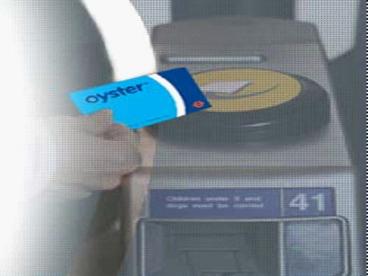
picture of Oyster card with a text saying what
the system is doing at that time.
19
When program has finished connection to the
database and collected data, you will see the
transactions.
20
Details of TKT on the Card in 3 slots i.e. Start,
Expire, Description and Zonal validity will be
displayed to the right of Refresh Data
button. Final Balance recorded on the card will
be displayed to the right of TKT details. Check
box next to Final Balance will sort the slots by
date. If unchecked, actual latest data in each
slot will be displayed. Abbreviations used in the
program display listed to the right of Sort Slots
by Date check box.
21
(No Transcript)
22
Details of Card if hot-listed, disabled or
replaced and amount of auto-load and deposit are
displayed to the right of Columns Explanation.
23
Columns explanation Seq means, card transaction
sequence number. Date and Time are for traffic
day of transaction. Station Name Garage/Route ID
displays name of station of transaction or route
ID if transaction is bus boarding. Transaction
name means transaction description. Device type
and ID mean what type of device has been used in
transaction and it's Identification number. Zone
shows zones of travelled, and can be 1 to 6 or A
to D, A means zone 7 and D is zone 10. Z1, if it
is set to Y, indicates that journey was made
through zone 1. It only applies on exit
transaction.
24
The value of the following 4 columns can be Y
for Yes, N for No and - means not
applicable. OSI means Out of Station
Interchange. CE means Continuation Exit. TD means
Transfer Discount applied. PP means Pre-Pay
involved.
25
If column Cap has been set to N it means that
the journey has not been capped, otherwise, it is
capped and capping scheme number will be
displayed. VRC means Validate Result Code. If it
is set to zero that means transaction was Ok. If
an error occurred during the transaction, error
number will be display in this column and error
description will be display in comment
column. Full Fare shows complete journey's Full
Fare on exit.
26
(No Transcript)
27
PrePay Charged means the amount of Pre-Pay has
been charged or refunded to the card. PrePay
Balance After means what the Pre-Pay balance on
the card is after the transaction. PrePay Running
Total means the running total of Pre-Pay spend
for a traffic day, calculated by this program.
In the Comments column, program will display
explanation of what these transactions are.
28
If the charge is correct the comment remains blue
and be followed by the phrase 'Correctly
charged'. If the charge is incorrect the comment
will turn red and be followed by the phrase
'Incorrect' with what the charge should be.
29
Following show typical messages.
30
(No Transcript)
31
(No Transcript)
32
If your user ID does not have proper privilege
level, you will not be able to see the card
holders details otherwise details are displayed
in this tab.
33
Click Search by name if Prestige ID is not known.
Click Search by name
34
(No Transcript)
35
- Enter values required, use as wildcard either
at the start, end or both ends of the entered
values. - Click Search Data
36
(No Transcript)
37
- Double click the row that best matches to your
search criteria. - Personal details lookup window will close
- (but will retain the search result) Prestige ID
will place itself in Octa. - Click Refresh Data.
38
- Octa usage
- Octa is for Internal use only and should not to
be sent to the customer. - Octa can save as four formats i.e. as normal
Excel (.xls) , templates (.xlt) , Data
Interchange Format (.dif) or Prestige Internal
format (.xlw). - Use Prestige Internal Format if you want to send
extract to someone else within LUL.
39
Any Questions ??
Thank you for your time and attention.
Created by B.H 09.06.2008
40
(No Transcript)
Recommended

