

How to Use the IP PowerPoint PPT Presentation
1 / 17
Title: How to Use the IP
1
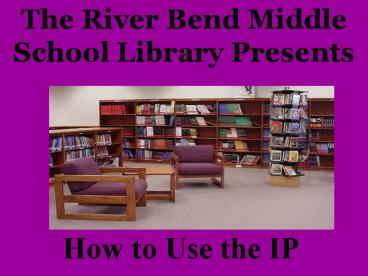
The River Bend Middle School Library Presents
How to Use the IP
2
It is not that hard to find a good book! Watch
as two students choose a novel.
3
Im into mystery.
4
The IP terminals are the quickest way to find a
good book.
5
What is an IP?
6
IP means Information Portal
IT IS A COMPUTER PROGRAM THAT LISTS WHAT IS IN
THE LIBRARY.
7
To use an IP
Choose the Quick Search.
8
Choose from the pull down menu.
You can choose a subject, general, title, series,
and name keywords. We chose a subject search for
mystery.
9
Choose a title that you might like to read from
the list of mystery books.
Lets choose the first title on the list.
Click on the title to find out more about the
book.
10
This is the screen that appears when you click on
the book title.
You will find very important information on this
page.
11
Scroll to the Subjects section. Notice that the
subjects are listed to the side of the record as
well as in the record.
12
Clicking on one of the subjects will create a
list of similar books.
Click on a highlighted word. Lets choose
supernatural.
13
The search found 449 books about the
supernatural.
We really want a mystery book so lets go back to
our mystery book list.
14
Scroll to the information section. You will find
out
1. How many pages are in the book.
2. A summary of the book
15
Scroll down to see if the book has been checked
out and to get the call number.
16
10
- If the book that you want is checked out, you
can
- return to the list of mystery books
- look for other books written by the author
by clicking on the authors name on the left side
of the screen.
17
Once you have found your book, check it out and
enjoy!
Recommended

